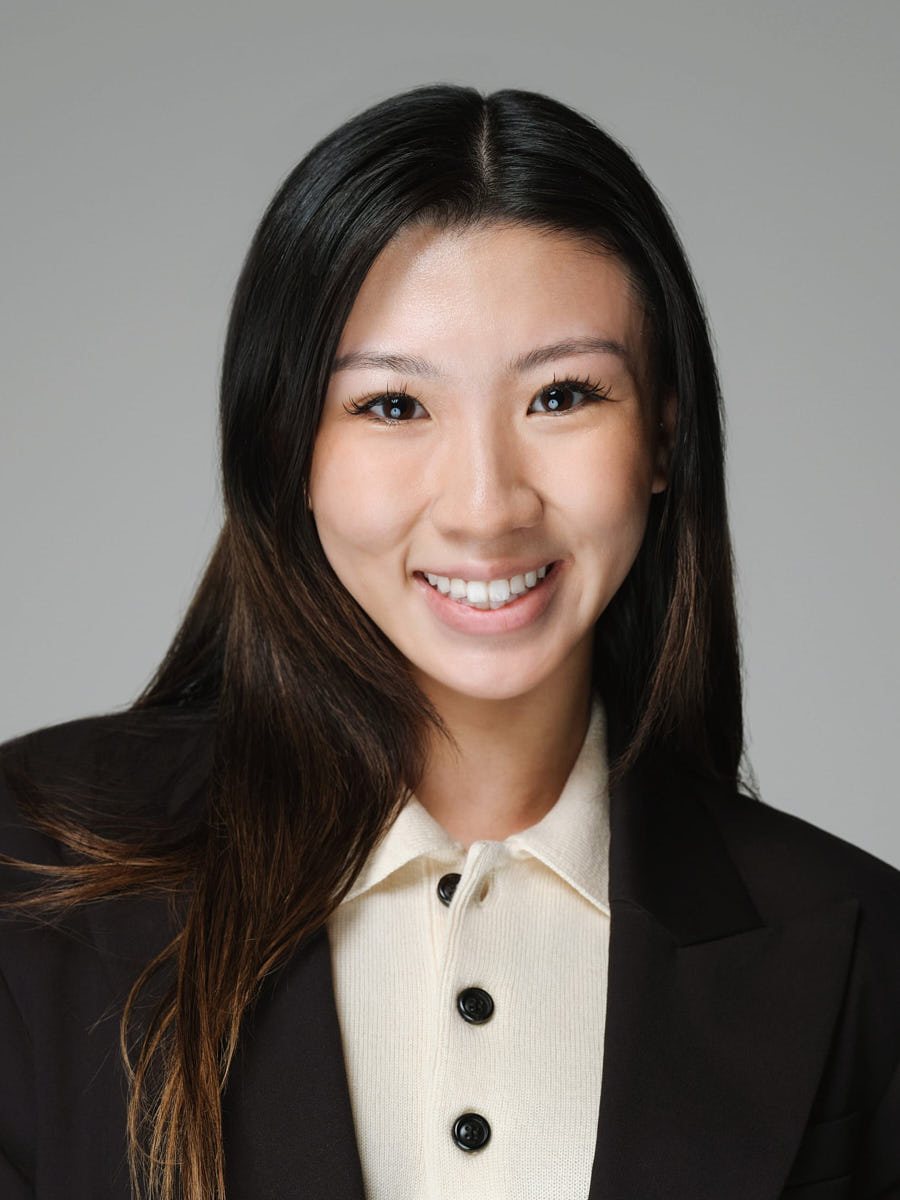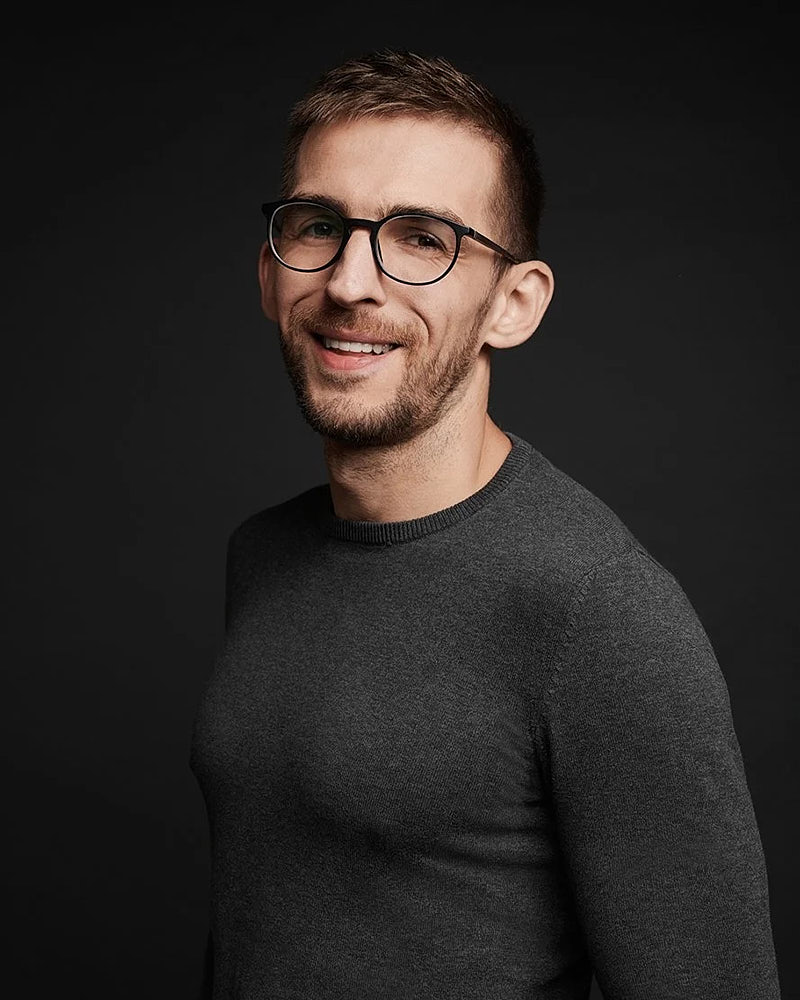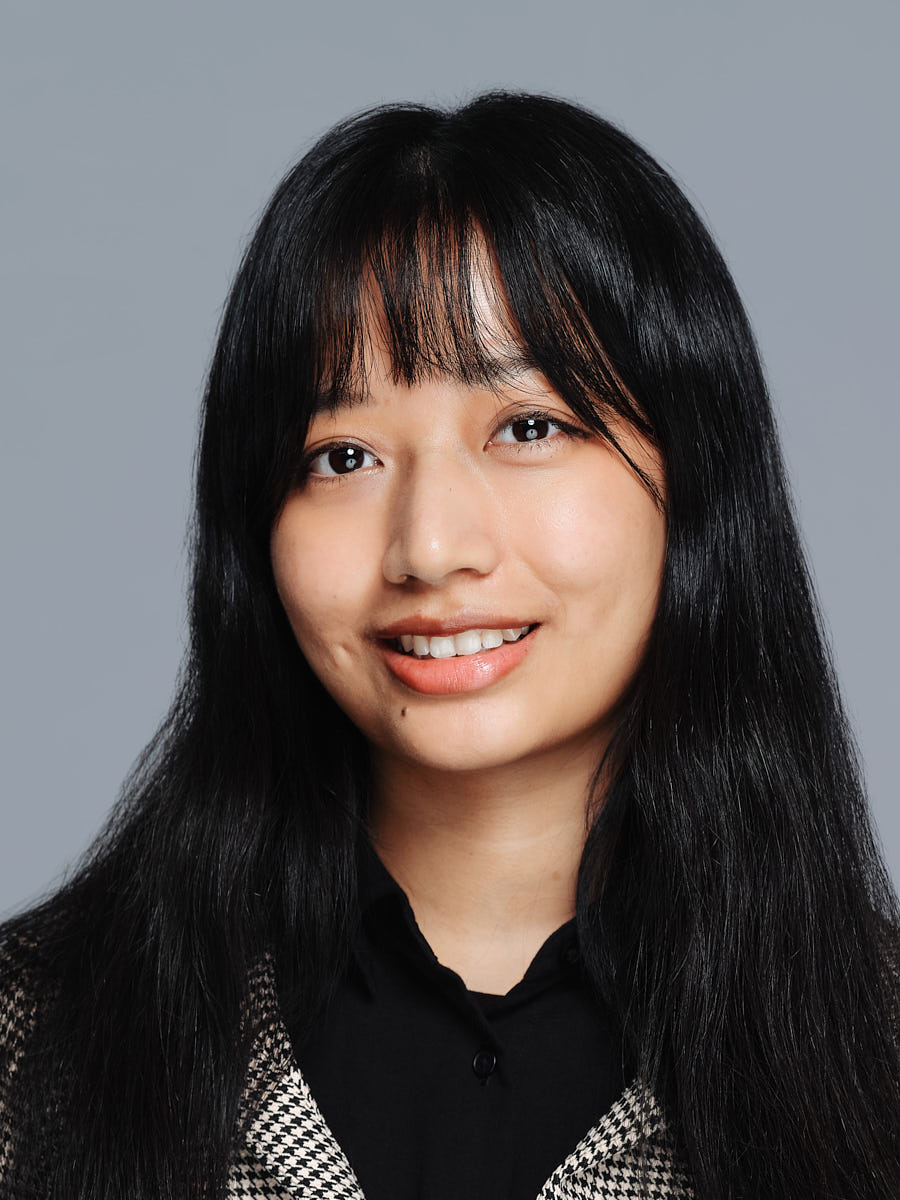
A useful LinkedIn profile photo shows a recognizable face inside a small circular crop. Start with a sharp square file, leave room around the head, and check the actual profile preview before choosing the final image. A portrait that looks excellent full-screen can lose its expression when reduced to an avatar.
LinkedIn profile photo size and file requirements
Source checked: October 8, 2026.
According to LinkedIn’s upload guidance, a profile image must be JPG or PNG, no larger than 8 MB, with dimensions between 400 × 400 and 7680 × 4320 pixels. These are upload limits; they are not a requirement to deliver the largest possible file. A clean 800 × 800 or 1200 × 1200 export is a practical option when the original photograph supports that resolution.
Keep the full-resolution original separately. Enlarging a tiny downloaded avatar will not recover detail. If the upload fails, check the file format and size before replacing the photograph. The LinkedIn background banner is a separate asset with different dimensions; do not stretch your square headshot to fill it.
Plan the circle before you crop the square
The corners of a square image disappear inside a circular mask. An off-center face, an angled shoulder, or hair close to the corner can look comfortable in the original and cramped in the avatar.
Try this sequence:
- Begin with an uncropped portrait containing some space above the head and beside the shoulders.
- Create a square crop with the face near the center.
- Preview it inside a circle, checking hair, glasses, chin and shoulders.
- Reduce the preview until it resembles a comment avatar on your phone.
- Compare a slightly wider and a slightly tighter version.
There is no universal percentage of the frame your face must occupy. Keep it large enough to recognize while retaining natural proportions and breathing room. If a wider photograph puts your face in a corner, ask for a separate profile crop rather than forcing the composition.
Choose the frame that remains clear when small
| Check | Useful result | What to reconsider |
|---|---|---|
| Face | Eyes and expression remain readable | Face becomes incidental to the room |
| Background | Subject separates from the setting | Bright objects compete with the face |
| Glasses | Eyes remain visible | Reflection obscures an eye |
| Clothing | Collar and neckline sit naturally | Crop cuts through a distracting logo |
| Expression | You recognize yourself | A held smile feels unlike you |
A quiet background can help, but plain gray is not compulsory. An office setting can work when it stays secondary to the person. Compare the actual pictures: a more formal outfit does not automatically produce a clearer thumbnail. For clothing choices, use the corporate and LinkedIn wardrobe guide.
Planning example: a founder changing roles
Planning example, not a client case. A Los Angeles founder needs a new profile photo after moving from a technical role into customer-facing work. Their website will stay unchanged for now.
The brief is one recognizable avatar, with a relaxed open-collar option and a jacket option if the selected package allows two looks. Both are photographed with enough margin for a square crop. The founder compares the finals on a phone rather than choosing solely from the large gallery preview. Environmental launch photography is a later requirement, so it does not need to inflate this profile-only session.
Upload, position and check visibility
LinkedIn’s profile-photo editing instructions explain how to upload, reposition, crop and set visibility. After saving, check your profile on desktop and mobile. A correct file can still be poorly positioned within the platform’s crop.
Use these final checks:
- Does the photo look current and recognizable?
- Are the face and eyes clear at small size?
- Does the circular edge cut into something important?
- Is the photo visible to the audience you intend to reach?
- Have you kept the original for other uses?
Check a failed upload before replacing the portrait
If a file fails, compare its JPG or PNG format, file size and pixel dimensions with that source. Export a compatible copy from the original, then try the actual profile preview again.
If it uploads but the face looks cramped, adjust the square crop and platform position. If detail is missing, return to the original photograph rather than enlarging a downloaded avatar. Keep upload acceptance, crop quality and visibility as three separate checks.
Questions about LinkedIn photo crops
Can I use an existing professional headshot?
Yes, if it is current, sharp and has enough space for a workable circle crop. Try the actual preview before booking a replacement. A wider portrait may need a separate export rather than a new shoot.
Should my LinkedIn photo be square or circular?
Upload a square photograph and use the platform’s preview to check the circular display. Permanently cutting a circle into the image removes useful flexibility for company bios and other placements.
Does a bigger file make the thumbnail better?
Only up to the detail available in the original. Good focus, suitable framing and a clean export matter more than enlarging a small file. Stay within the documented upload limits.
Can I use an illustration or generated portrait?
LinkedIn’s photo policy allows artistic renderings that reflect your likeness. If you want a real photograph, choose a photographed frame and agree on retouching that keeps you recognizable.
For a profile update with one or two wardrobe options, compare LinkedIn headshot sessions in Los Angeles. Send the current avatar and explain what needs to change when you inquire.